
To create a Question :
Step 1: Select the plus icon next to the "Question Management" heading.

Step 2: Select one question type from the menu.
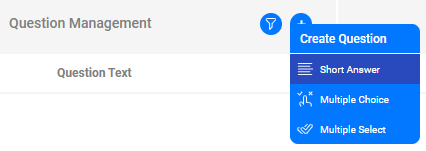
Step 3: Select "Short Answer" as question type will lead to a blank short answer question page.
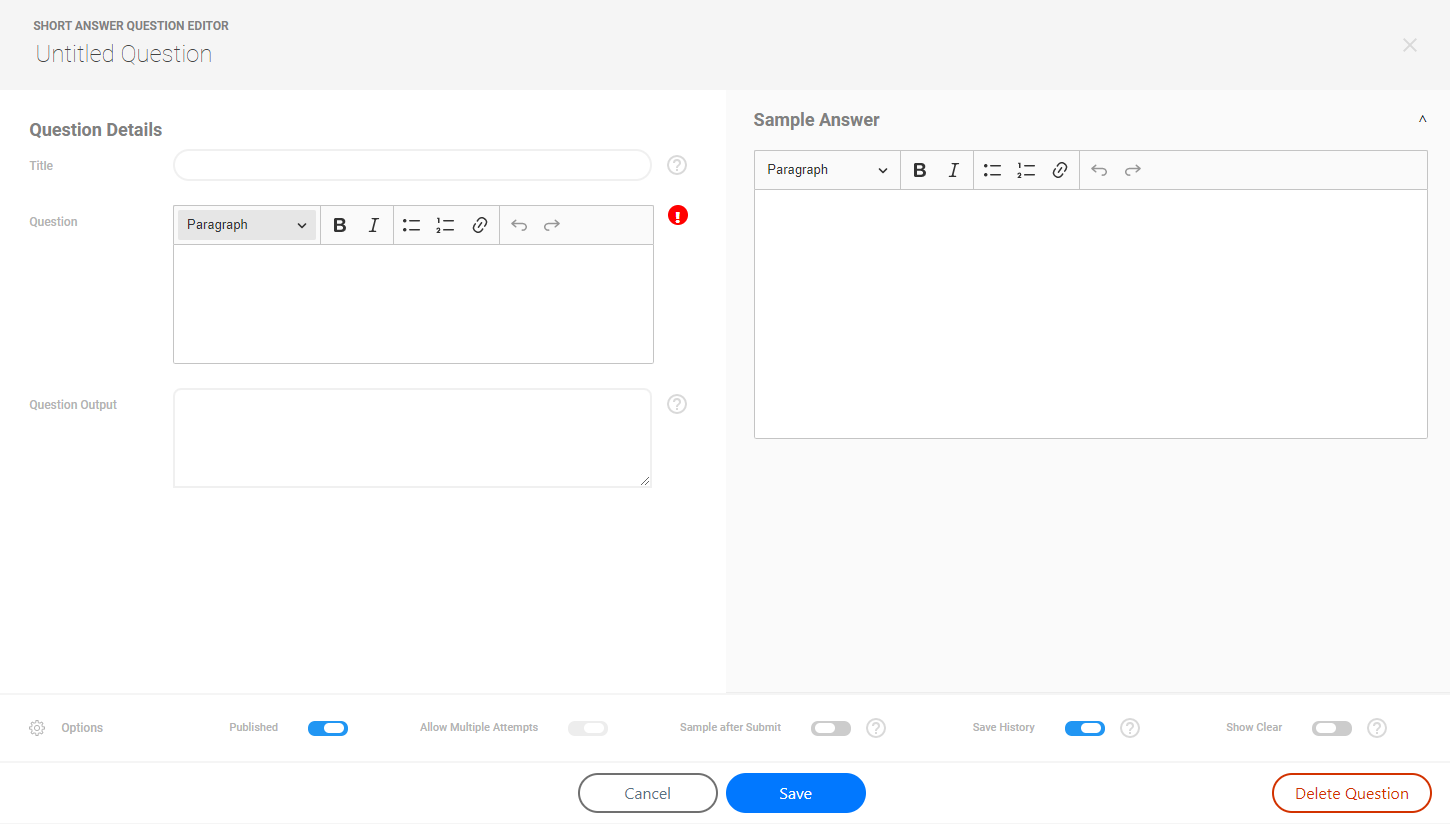
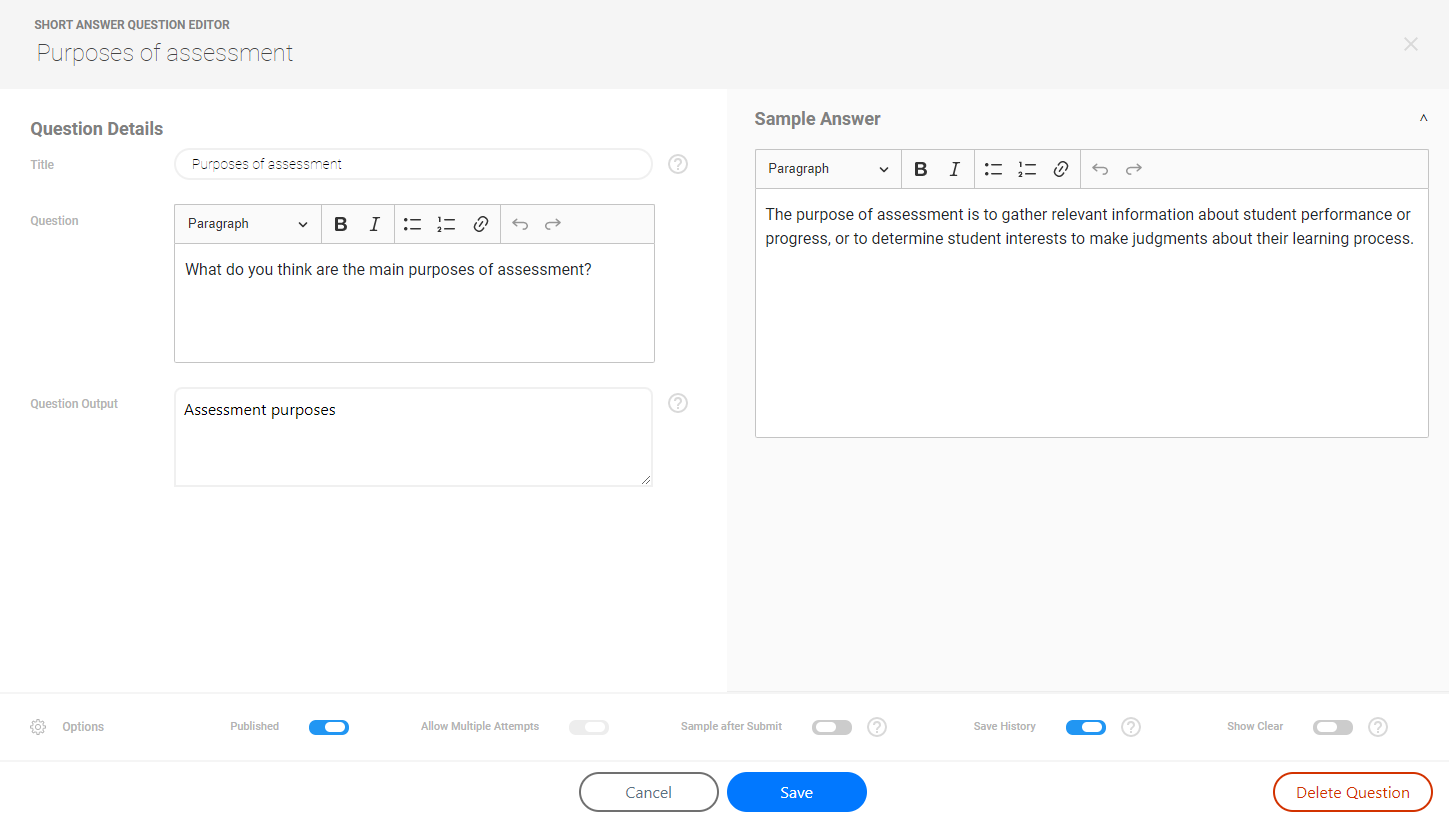
Step 4: Click Save button at the bottom after adding in the relevant question information.
Step 5: Follow step 2 to step 4 to create multiple choice questions and multiple select questions.
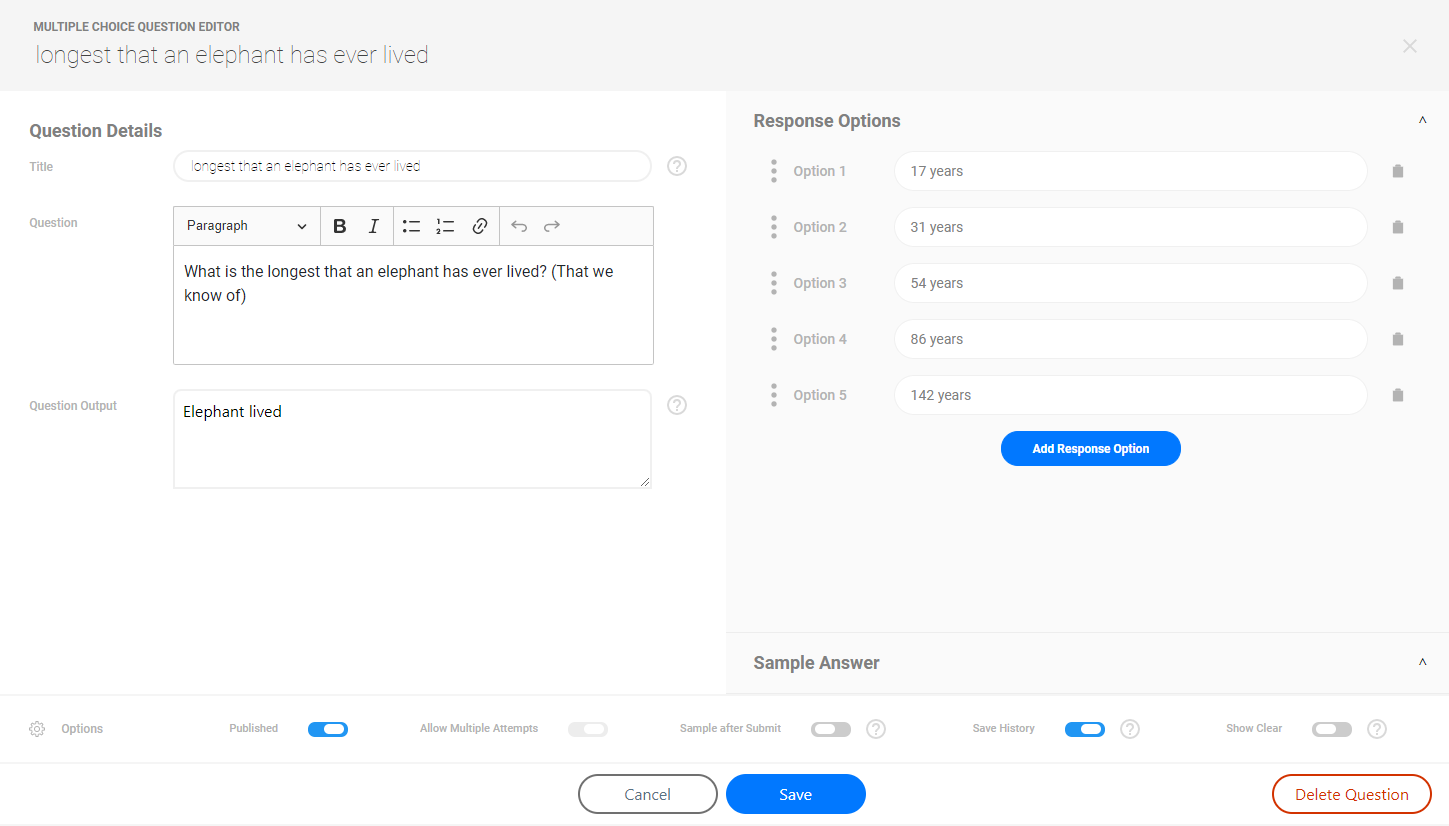
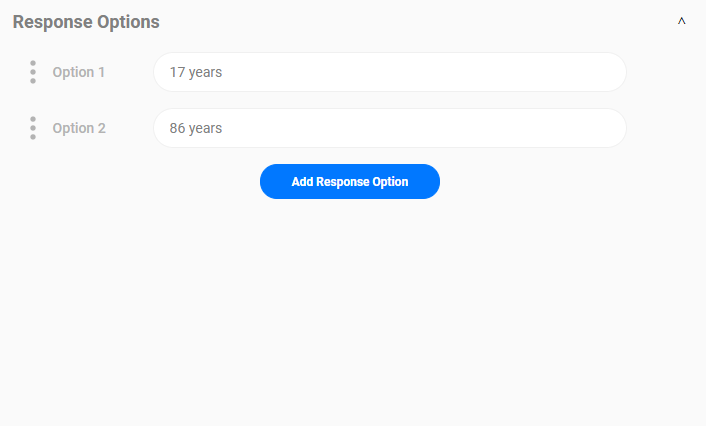
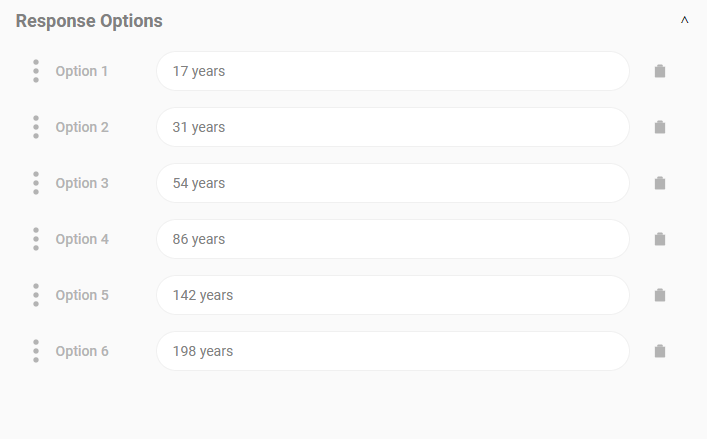
Multiple Choice and Multiple Select questions have a minimum of 2 and a maximum of 6 Response Options.
Saved questions could be found in question set under the "Question Management" heading.
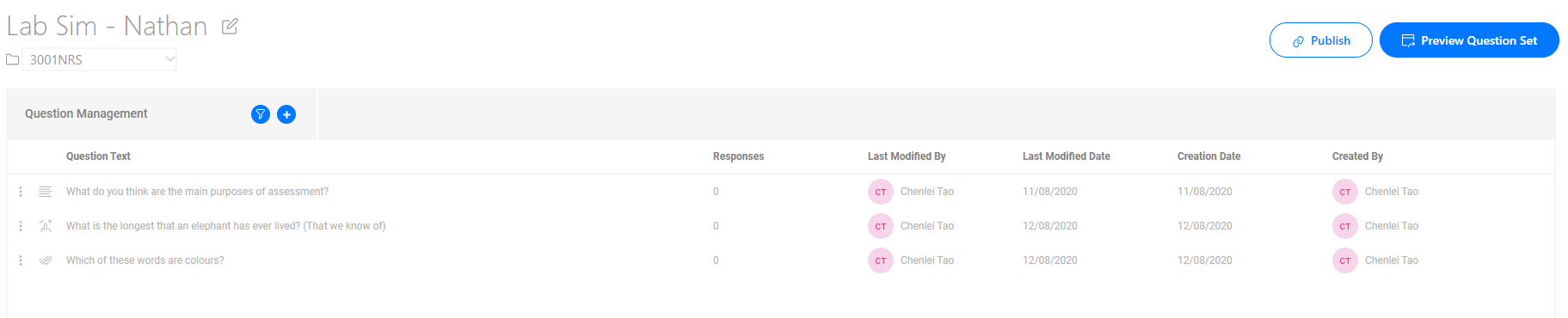
Editing an existing question can be done in a few short steps.
Step 1: Find and select the question that needs to be modified in the question list. This will open the Question Editor.
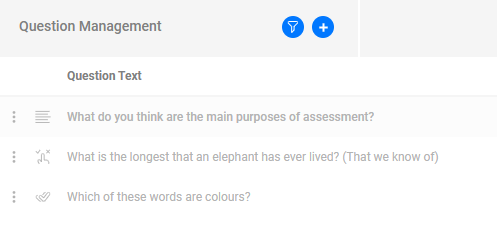
Step 2: Once you have finished making the required changes select the Save button.
Please Note: Deleting a Question will immediately remove all Responses associated with the Question. Please ensure that you do not remove a Question if you believe that you may need the Question or the associated Responses in the future.
Number of responses associated with the question could be found in question list "Responses" column.

Step 1: Click Delete Question button at right bottom of the question page.
Step 2: Select the "Delete" button if you want to proceed. This CANNOT be undone.
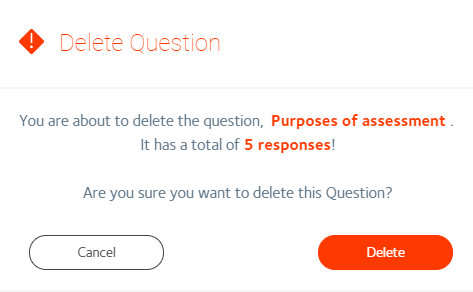
Upon confirmation the Question will be removed.
Deleting a Question cannot be undone. Rather than taking this action you could try the following:
Step 1: Click the question to get into question editing page.
Step 2: Click the Available button to change it to be off.

Step 3: Click Save button to save the change.
Question with Available off will not be displayed in any views.